Saturday, 8 February 2020

The importance of private

Hello, I was very very busy in the last months; so I restart to write posts now and this is a short post, but useful, post.

You know a  Livecode program is made of many object nested one inside another:
and livecode for every call, search that function or message from the stack to the nested element, so to avoid ambiguity in very big project, you can prefix the word private, so that function or message is visible only in that object (card, stack, button or else).
Example:
private function increase
      answer "Increase the volume"
end increase


Thursday, 29 August 2019

SQLite

You asked for it, so here a guide to SQLite.
Livecode can work with any database. Livecode has integrated SQLite, but you can interface with any database that has an ODBC interface (almost all have it), here are the most popular:
  • SQLite
  • MySQL
  • Oracle
  • PostgreSQL
  • Valentina DB

Databases are usually files outside our program that can be on the same PC on which our program runs or on a remote server. The databases contain lots of cataloged information. Thanks to the databases we can search for information, insert or delete data, all according to specific criteria that we set ourselves.
The language used by almost all databases is SQL. Generally the valid commands for a database also apply to all others.
Summarizing in a few words a database, we can say that it is a collection of tables, within each table the data are organized by rows and by columns.
Databases have advantages:
  • quick to find the data you need among thousands of data
  • take up little space
  • they are optimized to do their job
  • they are very fast (very, very, very fast)
  • it is possible to cross the data of several tables easily

You could do the same things as a database with an array; but if you deal with a lot of data, I suggest you learn how to use databases.

Connection

A database can be an external running program, you talk with it and it answers you. Thisi is called client/server database. (MySQL, Oracle, PostgreSQL)
A database can be simply just a file (SQLite).
To use a database you must first connect to a database (server or file), using the revOpenDatabase () function and store the connection identifier. For example with SQLite we will write:
put revOpenDatabase("sqlite", "./myDB.sqlite", , , , ) into connID


If livecode doesn't find the file, Livecode will create it.
In this example the connID variable contains the connection identifier (it's just a number). You can establish multiple connections simultaneously.

Query

To retrieve information from the database, in jargon it is said to query, just use the command the revDataFromQuery function, specifying how to separate rows and columns:

put "SELECT * FROM users ; " into tSQL
put revDataFromQuery(tab,return,connID,tSQL) into tRecords


in this case we have that tRecords contains all the data where each column is separated from the other by the TAB character and each row by a line. You can change this form, but it is very convenient because it allows you to view the data in a text field like a real table (field, label).

Execution

To execute commands that change in the database, or make more complex actions, just use the revExecuteSQL command, for example:

put "INSERT into users (name,surname) VALUES ('Jack','Sparrow')" into tSQL
revExecuteSQL connID,tSQL

Speeding execution

Sometime you need to send many commands one after another, like inserting a lot of data, or updating a lot of data. In this case is much better to use transactions. Transaction is a list of task, the database reads them all and then decide the best strategy to do all task in the shortest time possible.
For example:

put "BEGIN TRANSACTION;" into myQuery
put "INSERT INTO myTable (name, surname) VALUES ('Mark', 'Red') ;" after myQuery
put "INSERT INTO myTable (name, surname) VALUES ('John', 'Green') ;" after myQuery
--..... a lot of data more
put "INSERT INTO myTable (name, surname) VALUES ('Elvis', 'Yellow') ;" after myQuery
put "COMMIT;" after myQuery
revExecuteSQL connID,myQuery

Check  column existence

SQLite is simple fast, portable and compact, but it misses some complex function like how to know if a table column exists. You can do it, but it needs to call PRAGMA.
Here the example code:
put "PRAGMA table_info(myTable);" into tSQL
put revDataFromQuery(comma,return,connID,tSQL) into tRecords
if "muyColumn" is not among the items of tRecords then   
   answer "Column myColumn doesn't exist"
else
   answer "Column myColumn exists!"
end if

Close the connection

When working on databases installed on client/server type, it is advisable to close the connection when you no longer work with the database, here is the code:
revCloseDatabase connID


Friday, 23 August 2019

Livecode 9.5 stable

This version brings you a raft of new exciting features and benefits.
  1. New Android Architectures (32/64 bit) + support for the latest Google Play
  2. Store requirements. Create your app for the latest and greatest Android OS's, with fast simulators to help you preview and test.
  3. Windows 64 bit IDE & deployment support. Write code on and for 64bit Window's operating systems, ensuring your app is fast and smooth wherever it runs. LiveCode 9 has supported 64 bit on Mac, iOS and Linux for a while, now Windows can join the party.
  4. PDF Widget (Business Edition). A powerful full featured drag and drop widget to view and edit PDF files on desktop and mobile.
  5. Android Barcode Scanner Widget (Indy + Business Edition). Your Android apps can now scan barcodes just like your iOS apps.
  6. New Container Layer Mode. Build beautiful tables and grids that scroll fast and smoothly.
  7. New mobileSetKeyboardDisplay and
  8. mobileGetKeyboardDisplay handlers. Pan your screen view up to ensure your controls remain in view above the keyboard when needed.
  9. Progress, isSecure and allowUserInteraction features added to the browser widget. Need we say more? The beauty of the LiveCode language is that it is self explanatory.
  10. Several enhancements to Tree View Widget. You can now auto expand to reveal a row when selected and get and set the fold state of a specific row.
  11. Mac status menu library added. Use the new library to create, delete and set properties on a status menu.
  12. Improved sort international to support lots of additional locales. Useful if you are creating an app in several languages.
Additionally between version 9.0 and 9.5, Livecode squished over 400 bugs, giving you a noticeable boost in performance and stability.

Wednesday, 3 July 2019

Assembler emulator

Here it is an assembler x86 emulator wrote in Livecode by Andre Garcia:
You can download from here:: http://tinyurl.com/p48nhwd
There are 4 registers: ax, bx, cx, dx.
These are the commands;
  • GET - ask a number
  • PUT - shows ax register
  • MOV - copy the target register
    • MOV <target>, <register>
    • MOV <target>, <number>
  • CMP - compare registers
  • JA - jump if greater than
  • JB - jump if less than
  • JAE - jump if greater or equal
  • JBE - jump if less or equal
  • JNA - jump if not greater
  • JNB -jump if not less
  • JE -jump if equal
  • JNE -jump if not equal
  • JMP - jump!
  • XCHG - exchange 2 registers
  • ADD - add
  • SUB - subtract
  • AND - bitwise and
  • OR - bitwise or
  • XOR - exclusive or
  • CALL - call a  subroutine
  • RET - return from a  subroutine
  • HALT - stop the software
  • SETE - set 1/0 if equal
  • SETNE - set 1/0 if not equal
  • SETLE - set 1/0 if lower or equal
  • SETL - set 1/0 if lower
  • SETG - set 1/0 if greater
  • SETGE - set 1/0 if greater or equal
  • SETNLE - set 1/0 if not lower or equal
  • SETNL - set 1/0 if not lower
  • SETNGE - set 1/0 if not greater or equal
  • SETNG - set 1/0 if not greater


Tuesday, 2 July 2019

Menu builder


Menu builder is a tool in Livecode to create cool top menu:

Please not that on Mac it appears externally of the program:

Normal

On a Mac

The too in in the menu Tool -> Menu Builder:
On the left there are the main menu items, on the right the submenu of each item.
Dal menu builder potete aggiungere tutta una serie di effetti semplicemente usando il mouse, e le modifiche appariranno nel nome con un codice. This is the list of special chars and their meanings:
  • -   simple dash is a line divider
  • !c  this put a check before the menu item
  • !n this remove a check before the menu item
  • !r this put a list point before the item
  • !u this remove a list point before the item
  • & special char to call the item
  • / shortcat chara
  • ( rende il menu disabilitato
  • TAB to creat esubmenus
Fo examle this text
produce this:

You can use tags to change just what you see, but not the command; for example wiht multiple languages, you change only the tag. Example

Paste/V|Incolla


Monday, 1 July 2019

Creating PDF with links

Livecode permits you to print any part of your programs as a PDF (or on a real printer).
If you want, you can create a PDF with links. The command to use is print link.
For example on a window create a text (http://www.paypal.com) and the use Text-> Link menu. Like this:


For example the button code is:

on mouseUp
   set the printPaperSize to (item 3 to 4 of the rect of this stack)
   put the rect of field "example" into temp
   ask file "Save PDF as:" with "Example.pdf"   
   if it is empty then
      exit mouseUp
   end if
   open printing to PDF it   
   print card 1 of this stack   
   print link to URL "http://www.paypal.com/" with rect temp
   close printing
end mouseUp

This is the result in a PDF reader:


Thursday, 27 June 2019

Different types of rounding numbers

Rounding number is useful in so many applications, that I need to mention how i works in Livecode.
We have the following function:  round(), trunc(),  ceil(), floor().Let's see how they works with examplse.
Let's tart with round(), it can round to the nearest integer or to the number o decimal indicated by the second item:

put round(2.4) # it returns 2
put round(2.6) # it returns 3 
put round(2.712, 1) # it returns 2.7
put round(2.765, 1) # it returns 2.8

The function trubc() returns onl the integer part of the number:

put trunc(2.712) # it returns 2

If we need the the nearest integer more or equal the given number, you need ceil():

put ceil(2.2321) # it returns 3

If we need the the nearest integer less or equal the given number, you need floor():

put floor(2.712) # it returns 2

Sunday, 23 June 2019

Find and replace

A very understimated Livecode tool is the editor Find and Replace
In order to open Find and Replace window click on "Edit -> Find & Replace":


otherwise you can press  Ctrl+Shift+F.


This window permit you to find or replace anything wherever is in your code.

Programmers use find to double check if a mistyping lead to an error or to check other programmer work. Please note that find works only on saved program; if you type and you don't save, the text just typed is ignored.


Find and Relace window permits you to refine your search with these option:
  • simple text (all chars are interpreted as simple chars)
  • jolly chars, like asterisk
  • regular expressions
  • case insensitive or case sensitive. 
  • one of the words or all words
  • in what part of the program limit the research (stack, carc ,button current source, etc.9
Results list show where they are:


Clicking on one of the results, you'll be immediately in the part of the code.


Replace is incredibly amazing, you can change a name in all the program, without worrying to forget some part of the program. Livecode program are so evolute, that other competitor programming language have so many files spread across folders that you usually miss something and never change what the code.

Wednesday, 22 May 2019

Livecode 9.0.5 released!

The last version of livecode contains a lot of new features:

Infinity constant

The constant infinity has been added to the language in this release. As a result, the unquoted literal infinity is now reserved. Any existing uses of it should be quoted, as otherwise it will resolve to the floating point value representing infinity, rather than the string "infinity".

Math operation refactor

The math operations have been refactored to use common code for error checking. One of three different execution errors can now be thrown:"numeric: domain error" "numeric: range error (overflow)" "numeric: divide by zero". The error checking depends solely on the finiteness or otherwise of the operation's input(s) and output.
A domain error occurs when a math operation, given finite inputs, results in not-a-number (NaN) -this is the case when the function is not defined for the given inputs, for example acos(2); or the output does not exist in the extended real line (ℝ ∪ {−∞, +∞}), for example, sqrt(-1). A range error occurs when a math operation's output overflows given finite inputs, i.e. when the result is greater than the maximum value of a 64-bit floating point, for example 10^308 * 2.A divide by zero error occurs when a math operation causes division by zero either directly, for example 1/0 or 0^-1 or as part of its computation, for example 10 wrap 0. Math operations now do not throw execution errors when any of the inputs are non-finite, for example neither of (1^(-inf) + inf) / 2 = inf or sqrt(-inf) = NaN causes an execution error.

New container layer mode

Container layer mode support has been added to the accelerated rendering architecture.The container layer mode only has an effect on unadorned groups whose ancestors are alsocontainer layer mode unadorned groups.A container layer mode group provides a container for static and dynamic layers, allowing nestedgroups to also benefit from being cached for fast re-rendering.For more information, see the layerMode entry in the dictionary

Progress, isSecure and allowUserInteractinfeatures added to browserwidget

The message browserProgressChanged has been added to the browser widget to allow monitoring the progress of page loads.The property isSecure has been added to the browser widget to determine if the content of thecurrent URL has been loaded securely.The property allow UserInteraction has been added to the browser widget to control if the browser should respond to user input.See the dictionary for full documentation.

Deploy64-bit Windows standalones

You can now deploy 64-bit standalones for Windows. The Standalone Settings dialog now has a Windows x86 and a Windows x86_64 checkbox allowing you to choose to build either or both32-bit and 64-bit executables

New keyboardType field property

A new property has been added to fields to control the keyboard type displayed on the mobile keyboard.

NewAndroidArchitectures

Android builds now support four architectures. Previously android was built for armv6 only.Android is now built for armv7, arm64, x86 and x86_64.Checkboxes are included on in the Android standalone settings to choose which architectures toinclude in the build. When deploying your application via the Test button to a device the devicearchitecture will be detected and used even if not chosen in standalone settings.

New mobileSetKeyboardDisplay and mobileGetKeyboardDisplay handlers

A new command mobileSetKeyboardDisplay has been added to support a pan mode where the view is panned up if the currently focused field control is not visible when the keyboard is shown. Use mobileGetKeyboardDisplay to get the current mode. There are two modes supported:
  • over - the default where the keyboard displays over the stack
  • pan - the view is panned up the minimum amount required to ensure the foucused field isvisible

StaticlinkedcodelibrariesforiOSdevicebuilds

The standalone builder now supports .lcext compiled objects that link static libraries used by aLCB module to the module compiled as C++ using lc-compile's --forcebuiltins --outputauxc options. Additionally, the Using compiled librariessection of the Extending LiveCode guide has been updated to describe the creation of .lcextobjects

New layerClipRect control property

A new property 'layerClipRect' has been added to all controls. Use the layerClipRect property to clip an object's display to a rectangle. The clipping rectangleonly changes what part of the object is rendered, it has no effect on interaction; in particular,mouse events will still occur as they would without it being set

New log command and logMessage property

A new command (log) and global property (logMessage) have been added to allow an easy and low-cost method to disable or redirect script logs.The log command invokes the handler named by the logMessage as though the logMessage were directly written in the script. For backwards compatability the default value of the logMessage is log so any scripts that currently have a log handler will continue to work. To allow this log has been special cased as both a command name and a permitted handler name. If the logMessage is set to empty then the log command will not invoke any handler or evaluate any of the parameters in the argument list. In this example the log command will not be called with pInfo as loading resources whenthe uBuildMode of the stack is release

 on preOpenStack
  -- uBuildMode property set before building standalone 
  if the uBuildMode of this stack is "release" then 
   set the logMessage to empty 
  end if 
  loadResources 
 end preOpenStack 

 command loadResources 
   log "loading resources" 
 end loadResources 

 on log pInfo 
  -- unhandled put will go to system logs 
    put pInfo
 end log

New returnKeyType field property

A new property has been added to fields to control the return key type displayed on the mobile keyboard

Implement filter where clause

A new clause has been added to the filter command to filter where an expression evaluates to true. For example:
put "foo,bar,baz" into tList
filter items of tList where each begins with "b"  -- tList contains "bar,baz"

mobileSetKeyboardReturnKey on android

The mobileSetKeyboardReturnKey is now supported on android and theiphoneSetKeyboardReturnKey synonym is now deprecated

Accelerated DataGrid

The DataGrid has been updated to use the new container layer mode feature when running inform view mode.To take advantage of this, the datagrid must be at top-level or contained withing groups all havingcontainer layer mode set. It must have showBorder set to false, and the acceleratedRendering property must be enabled on the stack with appropriate compositor property settings. To get the maximum benefit from accelerated rendering, the behavior script for a row templateshould changing properties within the template unnecessarily. A new datagrid property minimal layout has been added. When this property is true, a rowtemplate will only receive the LayoutControl message if its data or its width or height haschanged as opposed to every time its rect changes (e.g. due to scrolling).

TreeViewwidget

The tree view widget now will automatically expand to reveal a row when it is selected. If scrollHilitedElementIntoView is not true then the scroll position will be adjusted to maintainthe currently visible top row. The tree view widget now has the ability to get and set the fold state of the selected element viathe hilitedElementFoldState property. Values are folded, unfolded, and leaf.Setting a value other than folded or unfolded will throw an error. Setting a value when nothing is selected or setting a value on a leaf node will have no effect. The autoFoldStateReset boolean property is added to allow the fold state to be reset when thearray data is set. Default value is false to match existing behavior. The tree view widget now has the ability to automatically select a new row when it is added. The tree view widget now has the ability to scroll the selected row into view. If true, this willhappen when setting the arrayData, setting the hilitedElement, and when adding a new row (when hiliteNewElement is true).Two properties have been added to achieve these options:
  • hiliteNewElement: either true or false
  • scrollHilitedElementIntoView: either true or false
The default values for both are false to match the behavior of previous versions of the widget. When selecting a row that is partially visible, the view will be adjusted so that the full row is visible. When changing the readOnly property, the view will only change position if the value is being setto true and the Add new elementrow is currently visible. The tree view widget now has the ability to get and set the fold state.One property has been added to achieve this option: foldState array. The fold state array is structured as follows: [key1] ["folded"] ["array"] [subkey1] ["folded"] [key2] ["folded"]


Mac Status Menu library

An mac status menu library has been added. Use the new library to create, delete and setproperties on a status menu. The menu's items property uses the familiar menu text formatfrom LiveCode menus

AndroidUtilitiesmoduleAndroidPermissionChecking

The ability to check Android permissions in LCB has been added to the android utility module. Use these handlers to check and request permissions before accessing resources (e.g. cameraaccess). The following handler have been added:
  • AndroidRequestPermission - Display a dialog requesting a given permission.
  • AndroidPermissionExists - Check to see if a given permission name is valid.
  • AndroidHasPermission - Check to see if a given permission has been granted. 

Just for Indy e Business versions

PDFWidget

A PDF widget has been implemented for all platforms with the exception of HTML5 and is available in LiveCode Business. The widget has a wide range of properties allowing you to alter the appearance of the widget, the way the user can interact with the document and providing details about the loaded document.

Android Barcode Scanning Widget

A new Android widget had been added that allows for scanning of barcodes using the device'scamera. Multiple barcodes can be detected in a single frame. Turning the guide on will set the widget tosingle detect mode, with only barcodes overlapping the guide being detected. Callbacks are sent on barcode detection and removal.See the dictionary for full details.
The barcode widget has the following properties:
  • device: The camera device to use.
  • previewWidth: The width of the camera's resolution.
  • previewHeight: The height of the camera's resolution.
  • previewFPS: The camera's frame rate.
  • overlayShowLabels: If labels should be displayed on top of each detected 
  • barcode.overlayShowRects: If rectangles should be displayed around each detected 
  • barcode.overlayShowGuide: If the scanning guide should be displayed.
  • overlayLabelColor: The color of any barcode labels .
  • overlayRectColor: The color of any barcode rectangles.
  • acceptedFormats: A list of barcode types to detect.
  • snapshotMode: If and when a snapshot should be taken of the barcode.
The barcode widget sends the following messages:
  • barcodeDetected: Sent when a new barcode is detected.
  • barcodeRemoved: Sent when a previously detected barcode is no longer in the frame.
  • barcodeClicked: Sent when a detected barcode has been clicked by the us

Android Barcode Library

A new Android library has been added that provides functionality for detecting barcodes inimages. The library defines the function barcodeLibraryDetect which takes an image and returns anarray of detected barcodes. See the dictionary for full details

Tuesday, 21 May 2019

Text margins

Default margins are 8 pixel from the border:
We can change them in many ways: with the property margins, all to a single value:

on mouseUp
   set the margins of field 1 to 0
end mouseUp


or with margins and all four different values:

on mouseUp
   set the margins of field 1 to 2,10,10,0
end mouseUp


Or with the single properties: topMargin, rightMargin , bottomMargin , leftMargin.

Monday, 13 May 2019

Multitouch

When you have a touch devices, like mobile phones and tablets, it is useful to manage the touch of multiple fingers simultaneously. Many programs, in fact, are easier to use with the touch of more fingers, such as zoom effects.

Livecode has also incorporated a system to manage multitouch without limit to the number of fingers that can be used simultaneously. This system works on Android and iOS.

The messages to be intercepted are: touchStart, touchMove and touchEnd.

For each of us we have a disposition a unique identifier (tID) of the finger a contact with the screen, which is presented by a number.
  • touchStart is sent as soon as a finger touches the screen
  • touchMove is sent when a finger scrolls across the screen, including the position (X, Y) of the finger
  • touchEnd is sent as soon as a finger comes off the screen
For example, the following code show the position, the instant by instant, of the fingers on the screen.


on touchstart tID
   lock screen
   create field ("finger" & tID)
   set the width of the field ("dito" & tID) to 250
   put "1," & (22 * tID) into temp #posizione
   set the topleft of the field ("dito" & tID) to temp
   create graphic ("finger" & tID)
   set the opaque of graphic ("finger" & tID) to True
   set the style of graphic ("finger" & tID) to oval
   put (25 * tID) & comma & (25 * tID) & comma & (25 * tID) into temp #colore
   set the backgroundcolor of graphic ("finger" & tID) to temp
   set the width of graphic ("finger" & tID) to 30
   set the height of graphic ("finger" & tID) to 30
   unlock screen
end touchstart

on touchend tID
   delete field ("finger" & tID)
   delete graphic ("finger" & tID)
end touchend

on touchmove tID, tX, tY
   set the text of field ("dito" & tID) to ("il dito " & tID & " si trova in " & tX & comma & tY)
   set the loc of graphic ("dito" & tID) to (tX & comma & tY)
end touchmove

This is the result on a Android device:

Tuesday, 30 April 2019

Shrink images

Today we will see how to create a program that reads an image, resizes it and saves it resized.
Let's create a new stack and let's put a button to ask for the file of the image we want. Livecode can import the following formats as images: GIF, JPEG, PNG, BMP, XWD, XBM, XPM, PBM, PGM, PPM, PICT, EPS.
To avoid overloading the code I limit myself to the most common formats, so the button code will be:
on mouseUp
   if there is an image 1 then
      delete the last image
   end if
   answer file "Select imaage, please:"
   put it into temp
   set itemdel to "."      
   if the last item of tolower(temp) is not among the items of "jpg.gif.png.jpeg.bmp" then
      answer "That file is not a supported format."
      exit MouseUp
   end if   
   import paint from file temp
   set the top of the last image to 75
   set the resizeQuality of last image to "best"
   set the inw of the last image to the width of the last image
   set the inh of the last image to the height of the last image
   set the intl of the last image to the topleft of the last image
end mouseUp
Let's explain it:
  •      we delete a possible image already present
  •      we ask for the location of the file
  •      we check that the file extension is one of those we like
  •      we import the image, this operation creates a new image
  •      we move it so that it does not cover the button
  •      we set the quality for image editing on best (best)
  •      we save the initial width, height and position
Then we put a scrollbar we will call scale, and a button to save. If all went well, we will have something like this:

Scrollbar code is:

on scrollbarDrag newPosition
   put the inw of the last image into iniW
   put the inH of the last image into iniH
   put the inTl of the last image into iniTl
   set the width of the last image to round(iniW * newPosition / 100)
   set the height of the last image to round(iniH * newPosition / 100)
   set the topleft of the last image to iniTl
end scrollbarDrag

As you can see, original data are saved, so we can't lose image details.

Now let's see save button code:

on mouseUp
   ask file "New file name:"
   export last image to file it as JPEG
end mouseUp


The export command supports: PBM, JPEG, GIF, BMP, PNG .

 Now you can enjoy with this program

Thursday, 25 April 2019

Moving an image along a path

When you have to move an object along a path or do an animation, many programmers lose days or weeks to calculate the formula that mathematically describes the path or animation.

Livecode allows you to avoid this and simply do it by hand!

As an example, I'll show you how to make a ball bounce in less than a minute.

First draw the ball directly in Livecode, just press the oval button, make a circle and then indicate the colors of the gradients, to have something like this:
Let's call it "ball".
Then we create a path, which we will call "mypath", by pressing the freehand button and drawing the trajectory of the ball by hand, obtaining something similar to this:


Make invisible the path and then create a Start button with this code:

on mouseUp
   move graphic "ball" to the points of graphic "mypath" in 10 sec
end mouseUp

Pushing the butto this will be the result:

Just one line of code! (thank livecode)

Wednesday, 24 April 2019

Photoroom

Today I'll show you a livecode program to edit images: PhotoRoom.
This software mad with livecode has hundreds of effects and show how is possible to edit image with livecode:
Here you can download the source, and here are the standalones that works without the IDE:

Tuesday, 23 April 2019

Printing on multiple pages

If you need to print on multiple pages, the best way is to create a substack as a template. This template will be also the first pages, prepare the text and just change content with the text or htmltext property.
Then clone it, so you have the second page; change the text and so on...

clone this card
A the end, just use this to print (pdf or you preferred printer):

open printing to pdf nomefile
go to card 1
print this stack   
close printing

Now you have to delete all pages except the first one, just use this code:
put the number of cards into temp
repeat with temp2 = temp down to 2
   delete card temp2
end repeat


Monday, 22 April 2019

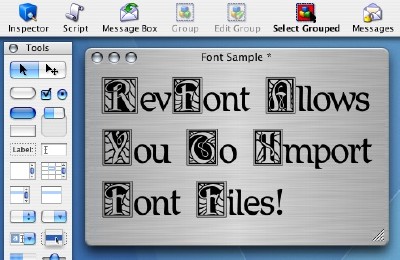
Using external fonts

You can incorporate fonts in your app or program in livecode, you can use on Windows and Mac the start using font, example:

start using font file "c:/myFont.ttf"

but you have also to add in the list of the file to copy:
On linux is different, you need to copy the font in the folder "~/.fonts/" and then launch fc-cache -f, for example:

create folder "~/.fonts"
revCopyFile "DroidSansMono.ttf", "~/.fonts/DroidSansMono.ttf"
put shell("fc-cache -fv") into temp

Thursday, 11 April 2019

Animated scrolling text

Creating an animated scrolling text can be achieved by livecode in two ways:
  • text manipulation
  • graphic manipulation
We'll see both ways.

TEXT MANIPULATION

Just create a field and put this code in it:

on movingtext mytext, myspeed
   set the realtext of me to mytext
   set the realtext2 of me to mytext
   stripspaces
   set the text of me to empty
   createspaces
   put the realtext2 of me into temp
   put the text of me before temp
   #put the text of me after temp
   set the realtext2 of me to temp
   set the text of me to temp
   set the cyclet of me to true
   cycleText myspeed
end movingtext

on stopcycle
   set the cyclet of me to false
end stopcycle

on stripspaces
   put the realtext2 of me into temp
   if the last char of temp is space then
      delete the last char of me
      set the realtext2 of me to temp
      stripspaces
   end if
end stripspaces

on cycletext myspeed
   put the realtext2 of me into temp
   put the number of chars of temp into nt
   set the text of me to temp
   repeat for nt times
      delete char 1 of me
      if not the cyclet of me then exit repeat
      wait mySpeed sec with messages
   end repeat
   if the cyclet of me then send "cycletext " & myspeed to me in 0 sec
end cycletext

on createspaces
   set the dontwrap of me to true
   put space after me
   if the formattedwidth of me < the width of me then
      createspaces
   end if
end createspaces


Now you have the following messages to use:
  • movingtext TEXT,SPEED: you use this message to change text, start scrolling setting the scroll speed
  • stopcycle to stop scrolling text

GRAPHIC MANIPULATION

Create a field and put this code inside it:

on cycleText myText, mySpeed
   lock screen
   set the locktext of me to true
   set the dontwrap of me to true
   set the pcontinue of me to true
   set the text of me to myText
   clone me as "clonefield"
   put the ID of the last field into tID
   set the pcloneid of me to tID
   set the width of fld id tid to the formattedwidth of fld id tid
   set opaque of field id tid to false
   set showFocusBorder of field id tid to false
   set threeD of field id tid to false
   set showborder of field id tid to false
   set lockText of field id tid to true
   set the left of fld id tid to the right of me
   set the top of fld id tid to the top of me
   create graphic "cycleR"
   put the id of the last graphic into tID2
   set the pgr of me to tID2
   set the style of graphic id tid2 to "rectangle"
   set the rect of graphic id tid2 to the rect of fld id tid
   set the opaque of graphic id tid2 to true
   set the backgroundcolor of graphic id tid2 to the backgroundcolor of this card
   set the linesize of graphic id tid2 to 0
   clone graphic id tid2
   put the id of the last graphic into tid3
   set the pgL of me to tid3
   set the right of graphic id tid3 to the left of me
   set the top of the graphic id tid3 to the top of me
   set the prealText of me to the text of me
   set the text of me to empty
   set the pmyspeed of me to myspeed
   unlock screen
   cycle2 mySpeed
end cycleText

on cycle2 mySpeed
   put the pcloneid of me into temp
   if exists(field id temp) then   
      set the left of fld id temp to (the left of field id temp - 1)
      wait myspeed sec
      if the right of fld id temp < the left of me then
         set the left of fld id temp to the right of me
      end if
   end if
   if the pcontinue of me then send "cycle2 "& mySpeed to me in 0 sec
end cycle2

on StopCycle
   set the pcontinue of me to false
   set the text of me to the pRealText of me
   put the pcloneid of me into tid
   put the pgr of me into tid2
   put the pGL of me into tid3
   delete field id tid
   delete graphic id tid2
   delete graphic id tid3
end StopCycle


RESULTS

You can see results in the following video, the text mode is confinde in it's space but it sn't constant due the difference in size of each letter, on the other hand the gaphic mode is smother but needs on the left and on the righe no other object, because we have to cover the text: